
Pazhamalai
Airtable shines as a flexible database tool for teams. You build bases that mix spreadsheets with visual boards. Yet, many users hit a snag when they need hard copies. This guide shows you how to handle prints from views, tables, records, and interfaces. We cover simple tricks and advanced setups to get clean, useful outputs every time.
Mastering Print Output from Standard Airtable Views
Views in Airtable let you slice data your way—grids for lists, galleries for images. Printing these requires tweaks to avoid chaos on paper. Start by setting up your view right, then print with care.
Printing Grid Views (The Most Common Use Case)
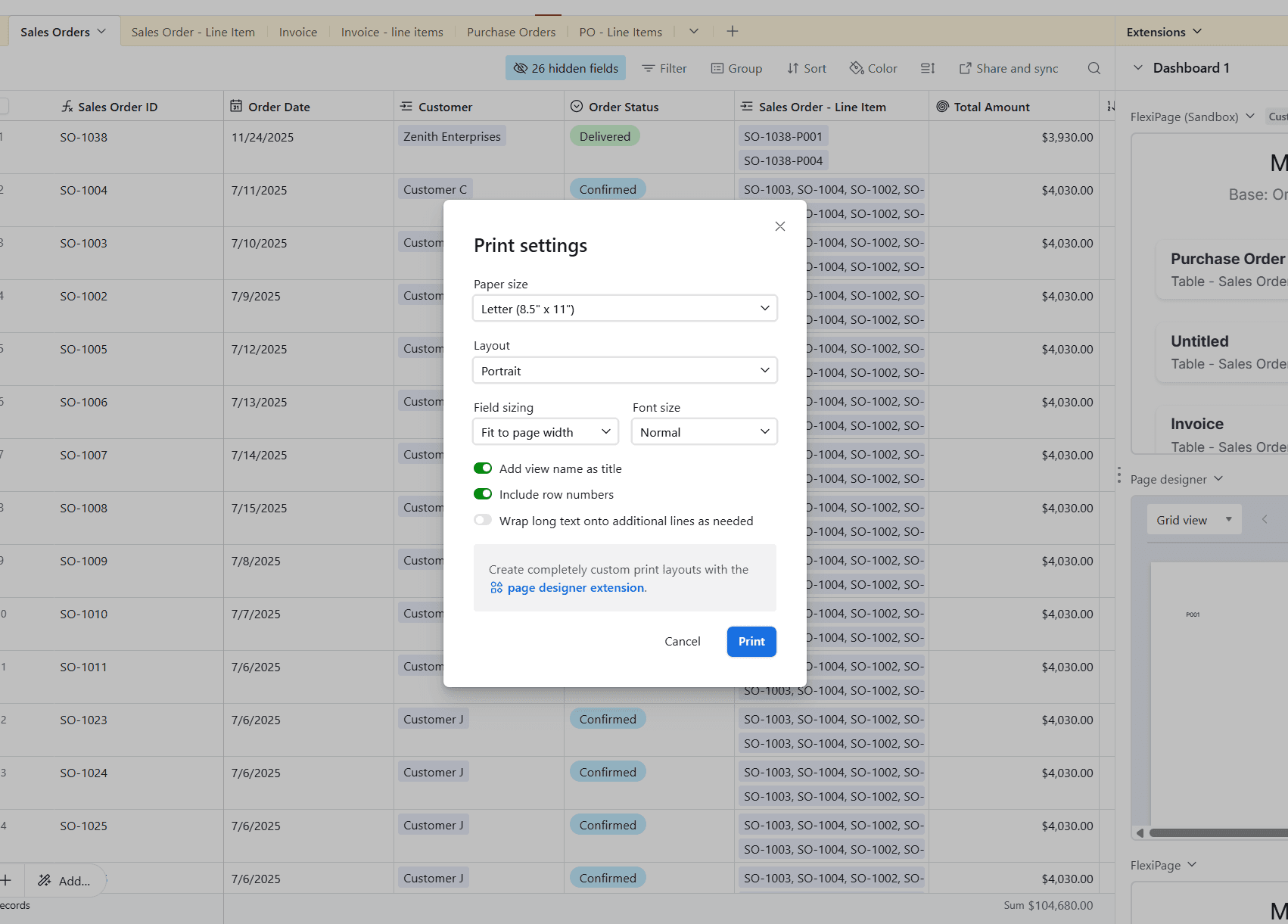
Grid views mimic spreadsheets, so they print like one too. Open your gird, hit Ctrl+P on Windows or Cmd+P on Mac to print. Your print will have all the records from grid.
To clean it up, hide un-ncessary fields, add group by fields. The printed document will reflect these settings. Grid prints shine for inventory lists or task trackers you hand out in meetings.
Optimizing Gallery and Kanban Views for Visual Reports
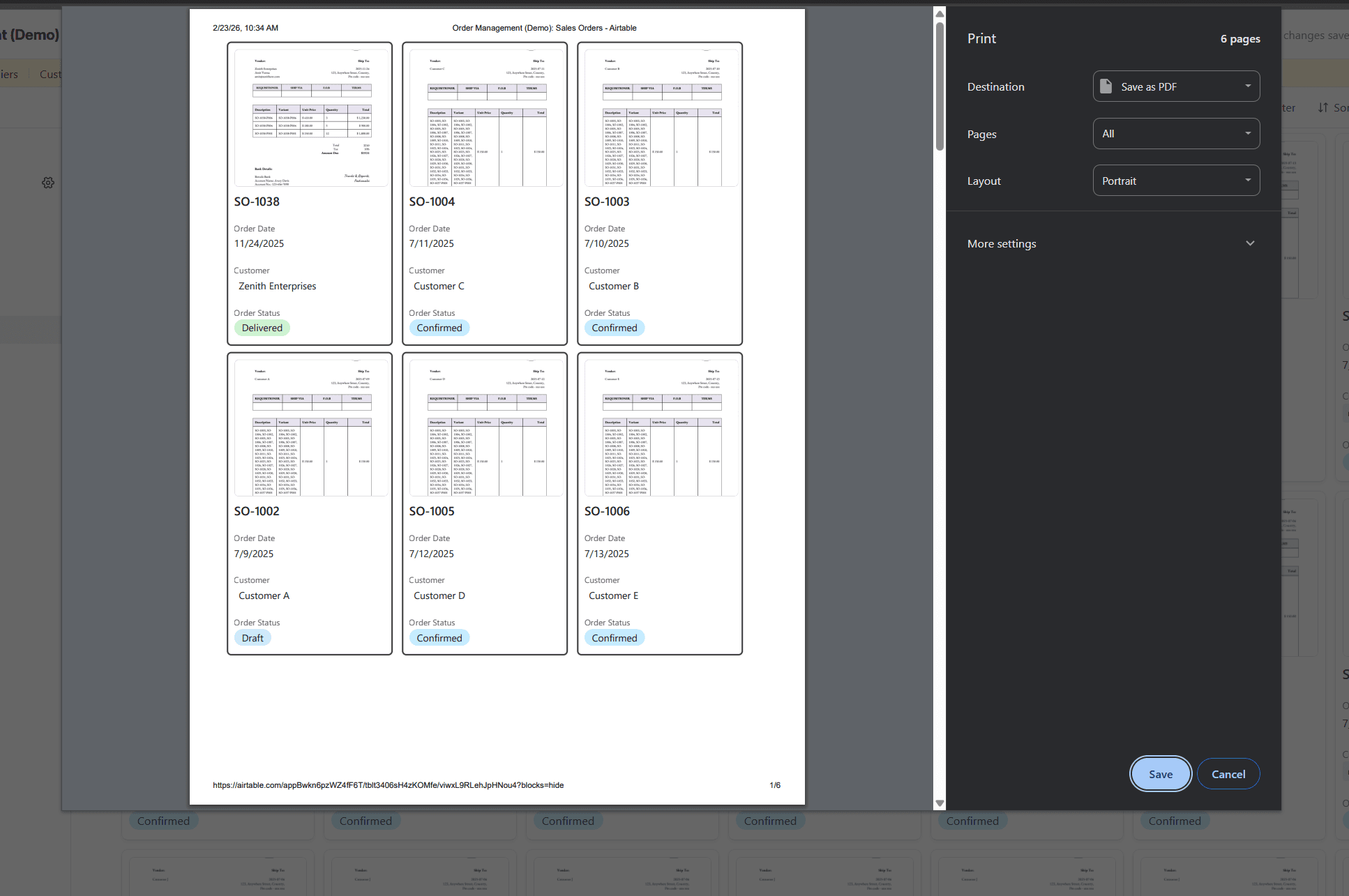
Gallery views show cards with photos and details, great for catalogs. For printing, shrink card size in view settings to pack more per sheet. Pick key fields like images and titles to avoid overload.
Kanban boards group items by status, like to-do or done. Print them to track progress offline. Set the board to show all cards at once, then use landscape mode for wider spreads.
Imagine a team hike with no Wi-Fi. A printed Kanban from your project base serves as a quick status check. These visual prints beat plain lists for creative teams.
Utilizing Page Designer for High-Fidelity, Custom Layouts
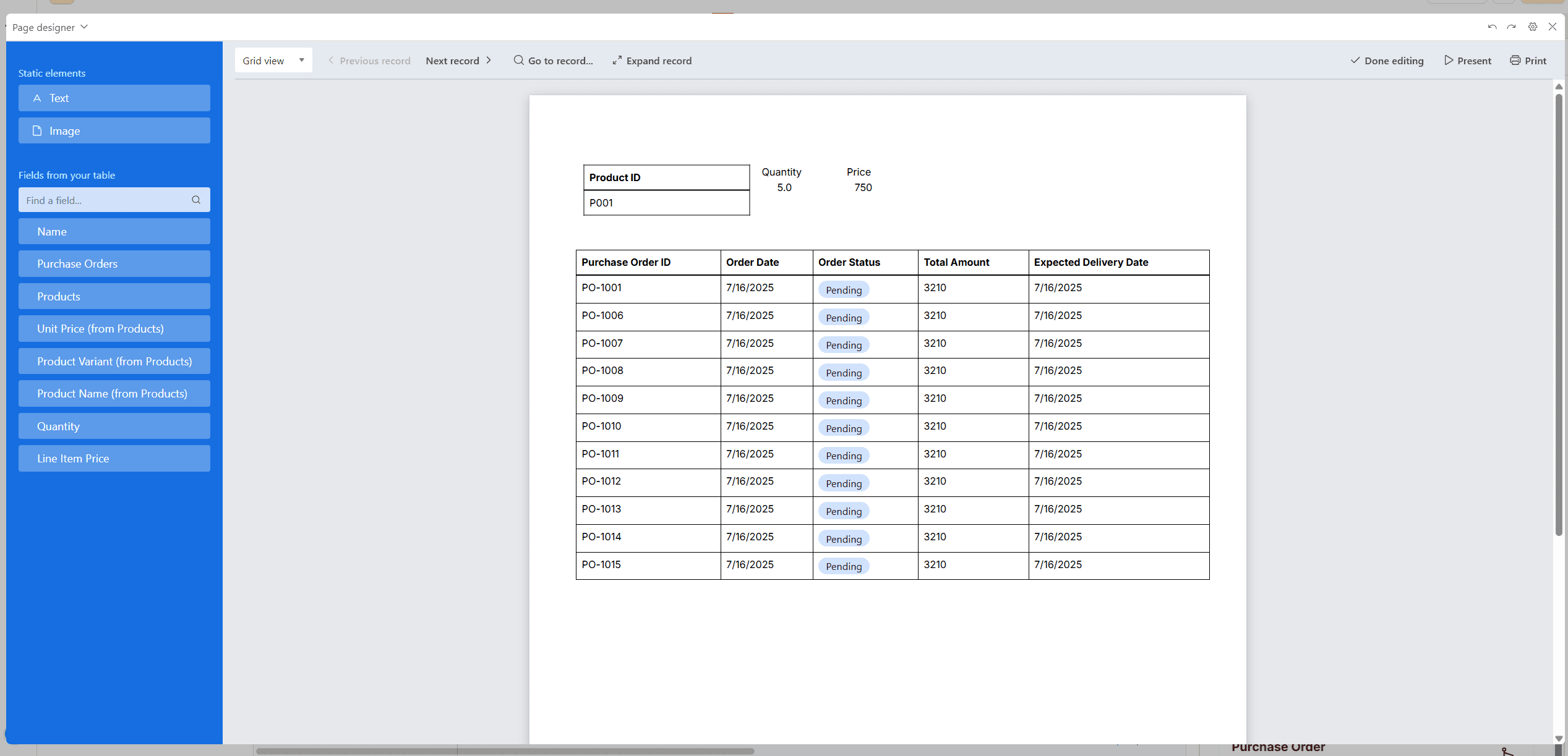
Page Designer steps up for pro-level prints from Airtable records. It acts like a blank canvas where you drag fields into place. Map your data to labels & tables. Page Designer also excels in bringing in linked record information and displaying them in table/list format.
This tool excels at single-record prints, like certificates or labels. Filter your view first, then link Page Designer to it. For each record, access page designer then print the record as pdf.
This is very ideal for invoices—pull client names, amounts, and dates into a branded template. No more copy-pasting into Word. Page Designer turns raw Airtable data into polished docs ready for the printer.
Checkout out page designer FAQ's to learn more.
Understanding Airtable’s Native Printing Limitations and Workarounds
Although Airtable provides decent tools to print bulk data (printing grid views) and generating pdf per record (page designer), it lacks certain formatting options
For example, page designer does not support multi page documents. Suppose your document has tables spawning a page, it will just break off. The only saving action, is to increase the page size large enough to hold all your information.
In printing with grid views, you cannot add custom text, headers etc... This makes it difficult if you want to create guides & reports.
The Role of Export Options (CSV to PDF)
Exports let you pull data out of Airtable fast. Add the exported data to google sheets or microsoft excel, but this will strip away colors and layouts (kanban/groupby). PDF exports keep some formatting, yet they still miss the full visual punch of your original setup. Google sheets or Excel allows you to print them as pdf documents. You'll be able to add custom text by grouping cells at the top.
Think of it this way: CSV works for dumping numbers into accounting apps. But for a client report, you need the grouped sections and bold headers that prints preserve. Raw exports handle bulk data moves, while printing nails the presentation side.
PDFs from Airtable offer a middle ground. Just enough functionality to print the records, ideal if you don't mind the missing formatting options or creating them manually everytime.
Advanced Printing: Bulk Records and External Tools
Scale up when one print won't cut it. Bulk options in Airtable handle dozens of records at speed. Pair them with add-ons for even more power.
Batch Printing Individual Records
This is a serious limitation from page designer, for bulk users. The only way to create document is to open the page designer for a particular record and then print it as pdf, then upload the pdf back to Airtable.
Integrating Third-Party Print/PDF Generators
Airtable's API opens doors to extra tools for tough jobs. Apps like FlexiPage connect to Airtable for auto-reports or invoices. Search for pdf extensions in the marketplace. They pull data and format it into templates. Use them when Page Designer feels too basic for sales dashboards.
Learn how to generate pdf documents with Airtable and FlexiPage
Printing from Airtable Interfaces
Interfaces make data user-friendly with dashboards and forms. Printing them captures the live view, like a screenshot in PDF form. Open your interface page and use the browser print dialog.
Export options in Interfaces often give cleaner results than base views. Share a dashboard as PDF to lock in the current setup. It includes charts and summaries without code clutter.
Conclusion: From Database Entry to Physical Document
Printing from Airtable bridges your digital base to real-world use. Start simple with browser tools for quick grids, Page Designer for custom layouts and external api's for automation
Key takeaways include:
Clean grid views by hiding extras before Ctrl+P.
Use Page Designer for single page invoices or labels.
External API tools for multi-page support and automation.
Tweak Interfaces for dashboard snapshots.
Pick the method that fits your goal—raw lists or formatted reports. With these steps, your Airtable data lands on paper just right. Try one technique today to streamline your workflow.
Liked this Article? Learn more and step up your automation game by managing your purchase orders using Airtable and Flexipage.